Getting Started with Note Maestro
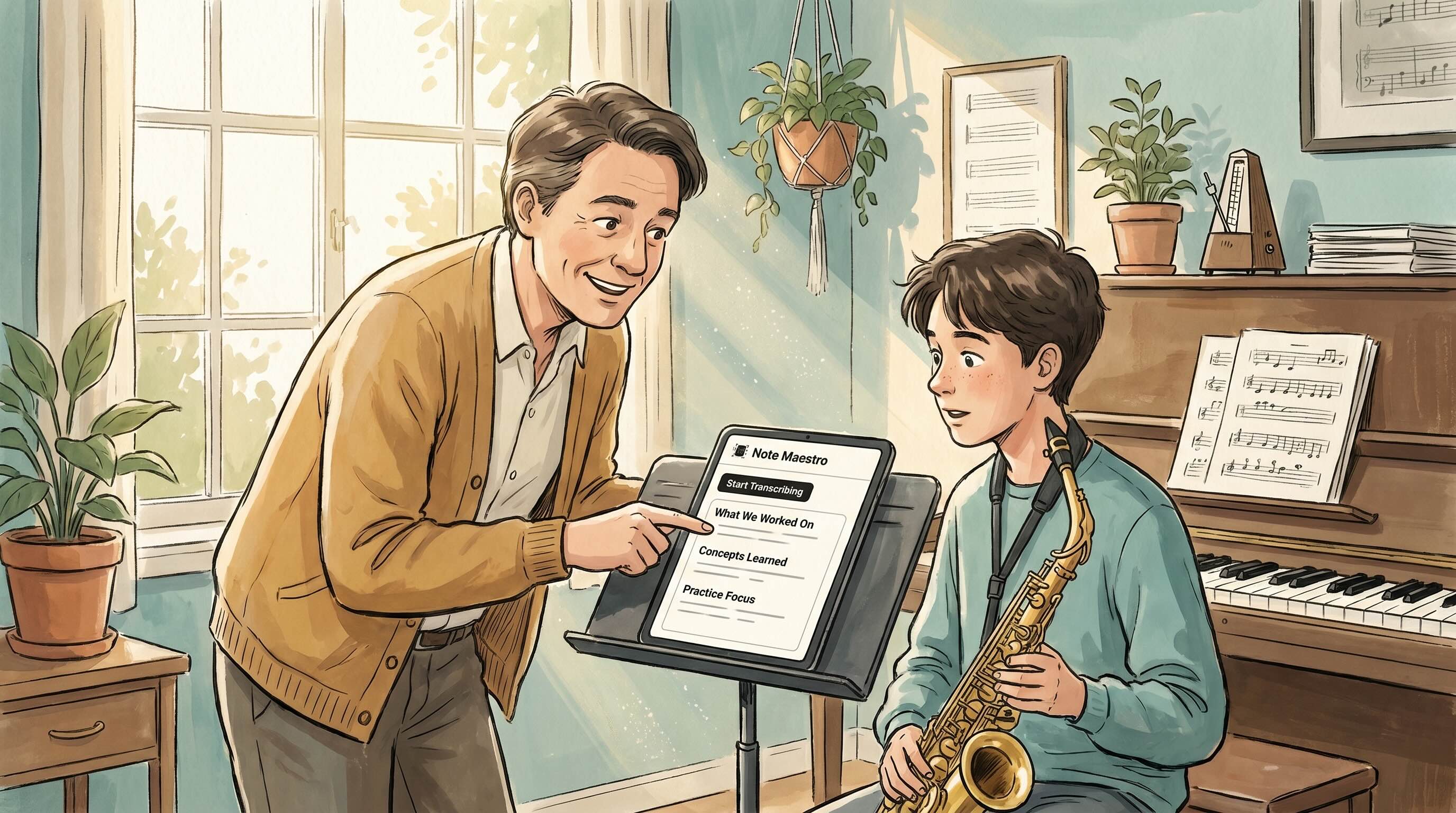
You've signed up for Note Maestro — welcome! This guide will walk you through how to use it and a few tips to get great results from day one.
Why Bother with Note Maestro?
Writing lesson notes is tedious and takes your attention away from the student. During a long day of teaching, we might write the bare-minimum for some students — but good notes genuinely matter. They help students practise the right things, show parents that progress is happening, and help you remember where each student left off.
Note Maestro removes the stress of rushing notes. You teach your lesson while Note Maestro listens, and when you're done it generates detailed, structured notes — without you having to type a thing.
Tips for Best Results
A few simple things make a big difference:
- Speak in a clear voice. You don't need to shout or speak unnaturally — just talk as you would normally, perhaps avoiding mumbling.
- Keep your device reasonably close. A phone or laptop on your music stand, desk, or piano lid works perfectly. It doesn't need to be right next to your mouth, but don't leave it across the room either.
- Don't worry about instrument sounds. Note Maestro is smart enough to distinguish speech from instrument playing, so you can demonstrate freely without it garbling the transcript.
That's it. No special setup, no external microphone required — just teach as normal.
Two Ways to Use It
Option 1: Transcribe the Whole Lesson (Recommended)
This is the easiest approach and gives the best results. When the student sits down, hit Start Transcribing and then just teach your lesson as normal. Talk about technique, work through passages, give feedback — everything you say naturally throughout the lesson gets captured.
When the lesson ends, hit Finish, and Note Maestro will generate a structured summary. Things mentioned at the start, middle, and end of the lesson all get included, which means your notes end up more comprehensive than anything you'd write from memory.
We recommend this approach because the notes essentially happen on their own. There is no extra step — you just teach.
Option 2: Recap at the End
If you prefer, instead of transcribing the whole lesson you can do a quick recap at the end. Spend the last minute or two summarising out loud, or even involve the student, which is quite fun, by asking them... "what did we learn today?" This approach gets good results and is easier than typing.
You Can Still Type Notes Too. Here's How...
In situations where you'd like to have full control over your notes, you can still type them. You can use the text box to type and email notes if you like, with no transcription/AI involvement at all.
There are two ways to combine your own typed notes with AI summaries:
Weave into AI (Recommended)
With this setting, your typed notes are treated as priorities. The AI integrates what you wrote with its own transcript summary, blending it all seamlessly together.
Own Section (For Distinct 'Teacher Notes')
Your typed notes appear in their own separate section in the final note, exactly as you wrote them. This is good if you prefer to keep your own notes separate and clearly distinct from the auto-generated content.
You can switch between these modes any time on the homepage using the "Notes I type" dropdown.
Creating Your Own Templates
Templates control how your notes are structured — what sections appear, in what order, and how the AI writes each one.
Note Maestro comes with built-in templates to get you started, but many teachers have their favourite way of structuring notes — so you can create your own template to match. Head to the Templates page and click New Template.
For each template, you can:
- Add and reorder sections — for example: "Warm-up," "Repertoire," "Technique Focus," "Practice Tasks for the Week," "Notes for Parents."
- Choose section format — bullet list or paragraph style, per section.
- Set the tone — Encouraging (celebrates effort), Neutral (clear and factual), or Warm (friendly and conversational). Pick what matches your teaching style.
- Set the length — Short (one sentence per item), Medium (a sentence or two), or Long (rich detail). Most teachers find Medium works well.
- Write AI guidance — this is the secret weapon. For each section you can tell the AI exactly what to focus on. For example, under "Practice Tasks" you might write: "Be specific about bar numbers, tempos, and how many times to repeat. Always include a metronome tempo." The AI follows these instructions every time.
Once you've created a template you like, set it as your default (the star icon) and it will be automatically selected when you start a new lesson. You can always switch templates per-lesson if you need something different for a particular student.
Templates also scaffold your note editor — when you select a template, the section headings appear in the typing area so you can jot things down under the right heading as you go.
Bonus: Integrates with Practice Sorcerer
Your Note Maestro subscription includes access to Practice Sorcerer — a gamified practice app for students with scales, ear training, and other interactive music tools, built by the same team.
Notes you save in Note Maestro appear for your students inside Practice Sorcerer's Lesson Notes tab — complete with any YouTube videos you've embedded, voice memo recordings, and clickable metronome tempos. Students see their notes and practice tools all in one place.
That's It — Go Teach!
The best way to learn Note Maestro is to use it. Pick a student, hit Start Transcribing, teach your lesson, and see what comes out. You'll probably be surprised at how good the notes are on the very first try — and once you've tweaked a template to match your style, they only get better.
If you have any questions, reach out to us at support@notemaestro.com. We're always happy to help.
Happy teaching!